Home » New to FireArrest? Start Here
New to FireArrest? Start Here
Welcome to FireArrest! This guide is designed to help teams get up and running with FireArrest quickly and efficiently. It covers the essentials from logging in to running of a report, with a focus on consistency and ease of use. Whether you are managing multiple projects or rolling this out across teams, these steps will give you a solid foundation.
Updated: 27/10/2025
Step 1: Registering with FireArrest
Once you have signed up with FireArrest, you will receive an email with your login information. The first step is to familiarise yourself with the FireArrest platform and the login process. It is vital that you make sure your companies name is in the domain otherwise you will not be able to log in.
For example, the company ‘FireDoorInspections’ will need to log in at FireDoorInspection.firearrest.uk

Step 2: Adding Operatives
Once you have familiarised yourself with the logging in process, you are ready to begin adding your staff members and colleagues onto the FireArrest system. The Admin tab is where you will find the User Management area. This is where you can create your Operative/Admins. The great thing about FireArrest is that you do not get charge extra for having multiple admins.
Steps to Add an Operative/Admin
- Log into your account at yourcompany.firearrest.uk
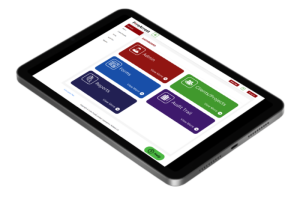
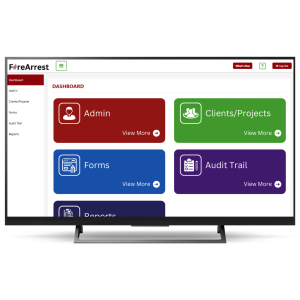
- Select the Admin tab from the options presented on the Dashboard
- From here, select User Management
- Click Operative/Admin
- Select Add User in the top right corner
- Now fill out the Operative’s information including their email address and password.
- Select the role for the user
- Click Save, this will send the operative an email with a link to download the app and their login credentials.
If the user is selected as both an Operative and an
Admin, they can access the dashboard via the app while on site. If they are
only selected as an Admin, they will only have access to the Dashboard via a
desktop.
Step 3: Creating a Client
Before you can begin to create a project a client must be created first so that a project can be assigned to them.
Steps to create a Client
- Select Clients/Projects from the main dashboard
- Click Clients
- Select Add Client
- Now fill out the relevant information for that client
A Client User can also be assigned to individual clients. To find out more about this role please go to Roles and Permissions.
5. Once the information has been filled out, please select Save.
Step 4: Creating a Project
Now that a client has been added, a project can now be created and assigned to them. This is what the operatives will be working on via the app when they are on site.
Steps to create a Project
- Select Clients/Projects from the main dashboard
- Click Projects
- Select Add Project
- Select Client Name from the dropdown
- Add the site address
- Select the Operatives assigned to this project
- Add the Range for the GeoFence*
- Upload the relevant Method Statement Document (PDF only)
- Upload the Risk Assessment Document (PDF only)
- Select Save
To find out more about what a GeoFence is and how it works please go to GeoFence, what is it and how does it work?
Steps to Upload a Drawing
- Select the Project
- Upload Drawing (Image file only)
- Enter the Drawing Name
- Select Upload
- Select Save
Step 5: Creating Service Types
Service types are used to record the types of jobs the operative is doing on site. For example, these can be ‘Fire door inspection’, ‘Cavity Barrier, and more. The service types are the services that you are offering to your client.
Steps to create a Service Type
- Select Admin from the main dashboard
- Click Service Types/Materials
- Select Service Types
- Add a Service Type by selecting Add in the top right corner
- Add the name of your service type under Title.
- Add a description of the service type
- Add the Unit of Measure for the service type
- Add an internal reference if necessary
- Select the relevant form under Form List if required
- Enter the Cost for the service type
- Add different Pin Types if required.
- Select Submit
Now that you have added, a client, a project and service types, the operatives can now begin their work on site using the FireArrest app.
Step 6: Starting Work using the App
The true purpose of the FireArrest app is to provide the operatives with the ability to record their work while on site using their mobile phones. This is achieved through the operatives dropping pins on drawing plans and taking photographs of the work they are completing. The operative can record their work in offline mode or in low signal areas, so that they can stay efficient and not need to fill in endless pages of paperwork.
Steps to Using the App
- Log into your account via the FireArrest mobile app
- Select Clients
- Click the Client you are working on
- Select the project
- Select the Drawing the work is being completed on
- Sign Risk Assessment if required
- Press and hold the area on the drawing you would like to drop the pin
- Select Yes
- Now fill out the relevant fields while completing your work.
- Once the pin has been completed, select save.
Once a pin has been created, it can be accessed again, and information can be edited.
After a pin has been created, the work will sync up to the main system as long as there is a strong internet connection has been established, and the app is open.
Step 7: Running off a report
The final step to using FireArrest, is the generation of customisable reports that will be given to your clients to prove accuracy and transparency when it comes to the work that you have completed. These can be completely customised to account for each client’s individual needs.
Steps to Run off a Report
- Login to your FireArrest account via yourcompany.firearrest.uk
- Select Reports from the main dashboard
- Select the type of report you wish to generate Cost or Project reports
For this demonstration we are using the Project Report
Learn more about Reports
4. Cost or Project reports
5. Select the Client Name from the dropdown
Select the Project Name from the dropdown
6. Select the Report Type
For this demonstration we are using Custom Project Report
- Add the Drawing Name
- Add the From Date and To Date for the work you would like to see on the report
- Select the Service Types you would like to see on the report
- Select the Pin Types that will be shown on the report
- Uncheck any of the information you would not like to be shown on the report
- Finally select the format you would like to generate the report in.
- To see the generated report select Report Downloads in the top right corner
All FireArrest reports use a live pdf link, therefore the link itself can be sent over to the clients if the document size is too big. These links will not expire so the client will always have access to them.